




MS Office 2021 Professional Plus is a current and highly sought-after office suite. It includes all essential applications for working with documents, spreadsheets, presentations, and email. To fully utilize the benefits of licensed software, it’s important to properly download and install it from a reliable source.
Before you purchase and download MS Office 2021 Professional Plus we recommend reviewing the suite’s capabilities and system requirements. Key applications in the suite include:
Additional Professional Plus applications include:
All applications maintain the familiar interface with tabs and ribbon menu, known since Office 2007. They seamlessly open documents created in older Office versions. The new OpenDocument 1.3 format ensures compatibility with other office suites such as LibreOffice or OpenOffice.
Additionally, Office 2021 offers numerous improvements over previous versions:
Before installing Office 2021 Professional Plus, ensure your computer meets these minimum system requirements:
Additionally, you’ll need to purchase a product key. Without it, Office will operate in limited mode. You can buy an activation key from Microsoft’s official website or save money by choosing a reliable online retailer offering discounted keys.
Before installing Office 2021, it’s recommended to completely remove any previously installed Office versions. This prevents conflicts and errors during installation and operation.
To uninstall Office on Windows:
If the uninstallation encounters errors or some Office components remain, you can use the Microsoft Support and Recovery Assistant utility. It automatically finds and removes all files and registry entries associated with Office.
For Mac, the removal process differs:
Key files and folders to remove:
After removal, restart your computer to complete the process and free up system resources previously used by the applications.
The most reliable and secure way to obtain an Office 2021 license is through Microsoft’s official website or an authorized reseller. The package typically includes a product key necessary for Office activation after installation.
Once you have the product key, proceed with downloading Office 2021 Professional Plus:
While ODT deployment instructions are well-documented, this option is excessive for regular users — the standard online installer suffices.
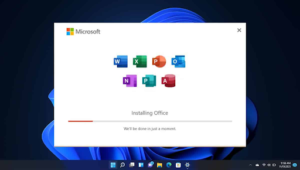
After downloading the Office 2021 installation package, run the downloaded file and follow the installation wizard prompts:
If errors occur or installation stalls at any point, check the event log to determine the cause, restart your computer, and try again. Contact Microsoft support for assistance if needed.
After installation, Office 2021 activates automatically with a valid license and internet connection. To verify:
Proper activation will show “Product Activated” and the installed Office package version, such as Microsoft Office Professional Plus 2021.
After activation, you can immediately begin using the applications. At first launch, the system will prompt you to sign in to your Microsoft account for settings synchronization and cloud service access, but this step can be skipped.
By following these step-by-step instructions, anyone can easily download, install, and begin using Office 2021 on their computer. Happy installing!






Powered by Bipper Media - a world class SEO agency. Check your website SEO authority score instantly here. Get VIP SEO services to grow your business!
