




Photos can quietly make or break how confident a customer feels when they find you on Google—especially in Maps results where people compare options in seconds. If you’re a local business owner or manager, optimizing your Google Business Profile images is one of the most practical “do-this-today” tasks you can tackle without rewriting your whole website. This guide shows you how to use GBP photos in a structured way so your profile looks legitimate, current, and easy to choose. It matters because strong visuals can improve engagement signals (like clicks, calls, and direction requests) and reduce friction when someone is deciding between you and the business two pins over.
If you want the bigger picture of how your profile fits into local visibility, start with Understanding the Role of Google Business Profile in Local SEO Success—then use the steps below to tighten up the photo side.
The Essentials for Optimizing Your Profile Images
- Upload a complete set: cover, logo, exterior, interior, team, and product/service photos so customers can verify they’ve found the right place.
- Keep photos current: add new images regularly (seasonal updates, new work, new inventory) so your listing doesn’t look abandoned.
- Use real, high-quality shots: clear lighting and sharp focus typically outperform heavily filtered or overly “stock-looking” images.
- Show proof, not polish: demonstrate what it’s like to visit or work with you—parking, entrance, waiting area, finished results, before/after (where appropriate).
- Stay consistent with your brand: match what people see on-site (hours, signage, storefront, staff uniforms) to reduce confusion and negative reviews.
How Google Business Profile Photo Types Work (and Why They Matter)
Google Business Profile supports multiple photo categories that help customers understand your business quickly. Some images are “identity” focused (like your logo), while others are “decision” focused (like your storefront, team, and examples of your work). The goal isn’t to trick an algorithm—it’s to remove doubt for real people.
In practice, photos help answer common buyer questions without a phone call: “Is this the right entrance?” “Is it clean?” “Do they actually do the kind of work I need?” “Is it kid-friendly?” “Can I park?” When your images answer those questions clearly, you’re more likely to earn engagement from the right searchers.
Prerequisites before you start:
- Access to your Google Business Profile (manager/owner permissions)
- 10–30 real photos from your location, team, and work (a modern phone camera is fine)
- Basic consistency: your business name, address, phone, and hours are accurate
- A simple folder to organize images (by category) before uploading

The Real-World Impact of Weak Photos on Calls and Foot Traffic
When your profile has outdated, blurry, or incomplete images, customers often hesitate—or they choose a competitor that looks more established. That hesitation can show up as fewer calls, fewer direction requests, and more “bounce” behavior (people returning to results to pick someone else). It can also create expectation gaps: if your storefront photo is old or your interior looks different now, customers may arrive confused or annoyed.
On the cost side, poor visuals can force your staff to spend more time answering basic questions (“Where do I park?” “Which door?” “Do you do this type of job?”). Strong photos don’t replace customer service, but they can reduce repetitive back-and-forth and help pre-qualify inquiries.
Common Photo Mistakes That Undercut Trust (Checklist)
- Only uploading a logo: customers want to see the real place and real work, not just branding.
- Using heavily edited or filtered images: over-processing can look unnatural and reduce credibility.
- No exterior/entrance shots: people need to confirm they can find you—especially in multi-tenant buildings.
- Uploading duplicates or near-duplicates: ten versions of the same angle adds clutter without adding clarity.
- Ignoring messy backgrounds: clutter, personal info on whiteboards, or license plates can create privacy and professionalism issues.
- Posting images unrelated to the service: off-topic visuals confuse customers and dilute what you’re known for.
- Outdated seasonal photos: a “holiday 2021” vibe in mid-2026 makes the profile feel neglected.
A Step-by-Step Plan to Improve Your GBP Photos
-
Step 1: Build a simple photo list (what you need to capture)
Make a checklist of the images a new customer would want to see before contacting you.
Tips:
- Start with: exterior (wide + close), entrance, reception/waiting area, team, products/services, and examples of completed work.
- If you serve customers at their location (home services), focus on: team, equipment, branded vehicles (if applicable), and finished results.
-
Step 2: Capture photos with “decision clarity” in mind
Take images that reduce uncertainty: clean lighting, clear subject, and recognizable context.
Tips:
- Use natural light when possible; avoid harsh backlighting from windows.
- Take both wide shots (context) and close-ups (detail).
- Include people when it makes sense—customers like seeing who they’ll work with.
-
Step 3: Organize and select your best 15–30 images
Choose variety over volume. You’re building a story, not a camera roll dump.
Tips:
- Create folders: Exterior, Interior, Team, Work Samples, Products, Vehicles/Equipment.
- Pick images that look like “today,” not last year.
-
Step 4: Upload by category in your Business Profile
Upload the most important categories first so your listing feels complete even before you finish the full set.
Tips:
- Prioritize: cover, logo, exterior, then your work/service examples.
- After uploading, check the live listing on mobile—many customers will see you there first.
-
Step 5: Replace outdated images instead of only adding more
If your newest photos are great but your old ones are confusing, you’re sending mixed signals.
Tips:
- Audit older photos for: old hours signage, old branding, prior tenants, or messy spaces.
- Keep a “core set” of evergreen images and rotate seasonal updates.
-
Step 6: Create a lightweight photo routine
Consistency beats one big upload spree once every few years.
Tips:
- Set a calendar reminder to add a few new photos monthly or quarterly.
- Whenever you finish a great job or update the space, capture it the same day.
-
Step 7: Monitor engagement and customer questions
Let real customer behavior guide what you photograph next.
Tips:
- If people keep asking where you’re located in a complex, add clearer exterior/entrance shots.
- If you get mismatched inquiries, add more examples of the specific services you do (and don’t) provide.
Professional Insight: What Most Businesses Miss About Photo Strategy
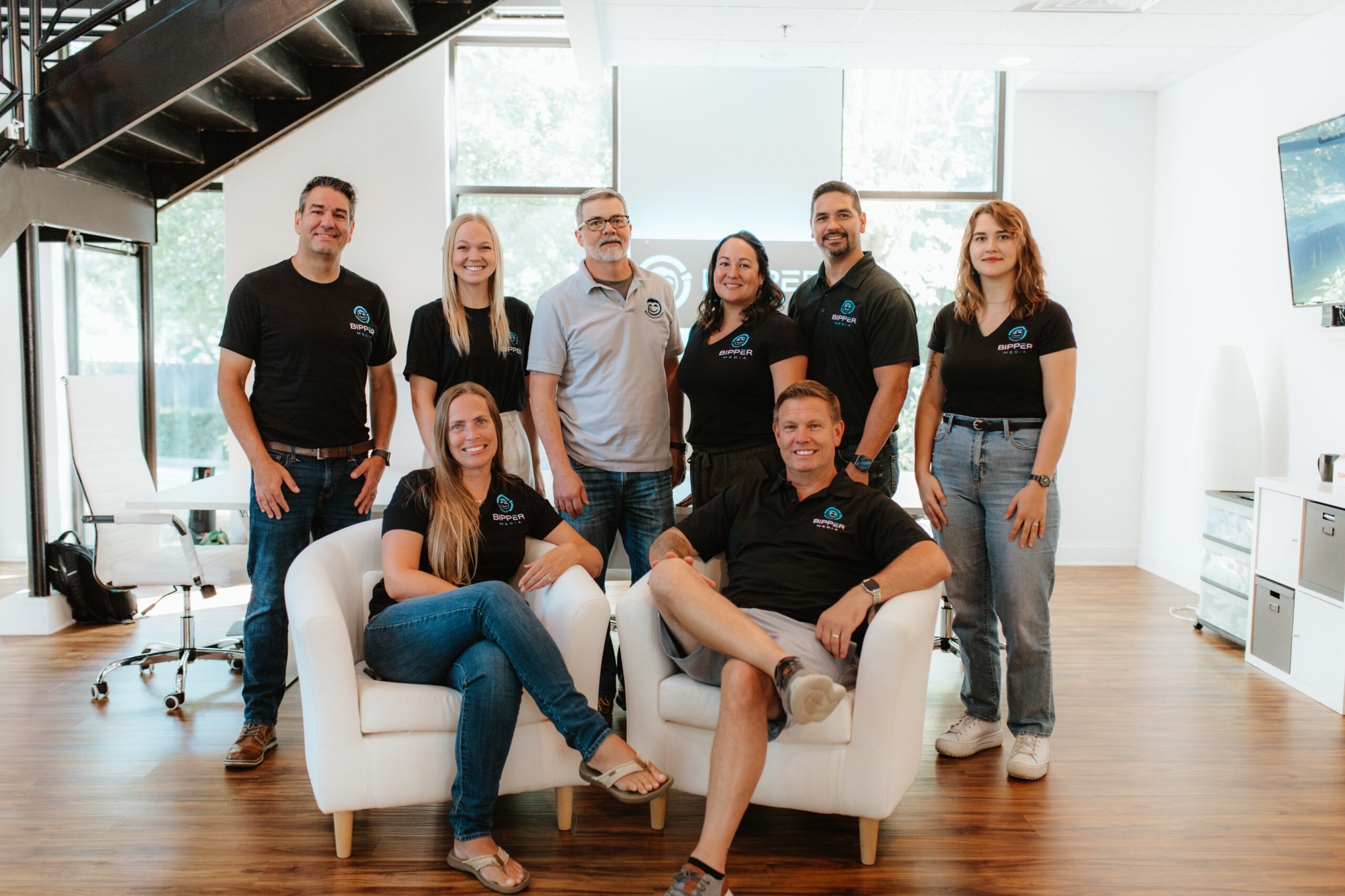
In practice, we often see businesses treat images like decoration instead of documentation. The profiles that tend to perform better for real-world conversions usually show the “proof points” customers care about: the exact entrance, the actual team, and clear examples of the work—captured in normal lighting and updated when something changes.
When DIY Photo Updates Aren’t Enough
Consider getting professional support if any of the following are true:
- You’ve uploaded photos, but your listing still shows outdated or irrelevant images prominently.
- Your business has multiple departments/services and customers routinely misunderstand what you offer.
- You’re in a competitive category and need a consistent visual system (not random uploads) to match your brand standards.
- You don’t have access to the profile, can’t resolve ownership issues, or changes aren’t sticking.
- You want your photos aligned with broader local SEO work (site content, services, and Google Business Profile optimization).
Frequently Asked Questions
How many images should a local business upload to look credible?
A practical starting point is a well-rounded set (often 15–30) covering exterior, interior, team, and what you sell or do. The key is variety and clarity, not sheer volume.
Should I use professional photography or phone photos?
Either can work. Clear, well-lit, recent photos are typically more helpful than heavily edited images. If your space or work is hard to capture (low light, detailed craftsmanship), professional photos may be worth considering.
What kinds of photos help customers choose faster?
Photos that reduce uncertainty tend to help: storefront and entrance shots, interior context, your team, and real examples of completed work or products. Think “answers to common questions” more than “pretty pictures.”
Can I remove old or incorrect images on my listing?
You can manage many photos you upload directly from your profile dashboard. If there are images that are inaccurate or inappropriate, you can typically flag them through Google’s reporting options within the listing interface.
Taking Action on Your Photo Checklist
Strong, current images make your listing easier to trust and easier to choose. Start by capturing the core set (exterior, interior, team, and work samples), upload by category, and replace anything outdated. Then set a simple routine so your profile stays fresh without becoming another never-ending task on your to-do list.
Book Your Consultation
Schedule a free consultation with our experts.
