



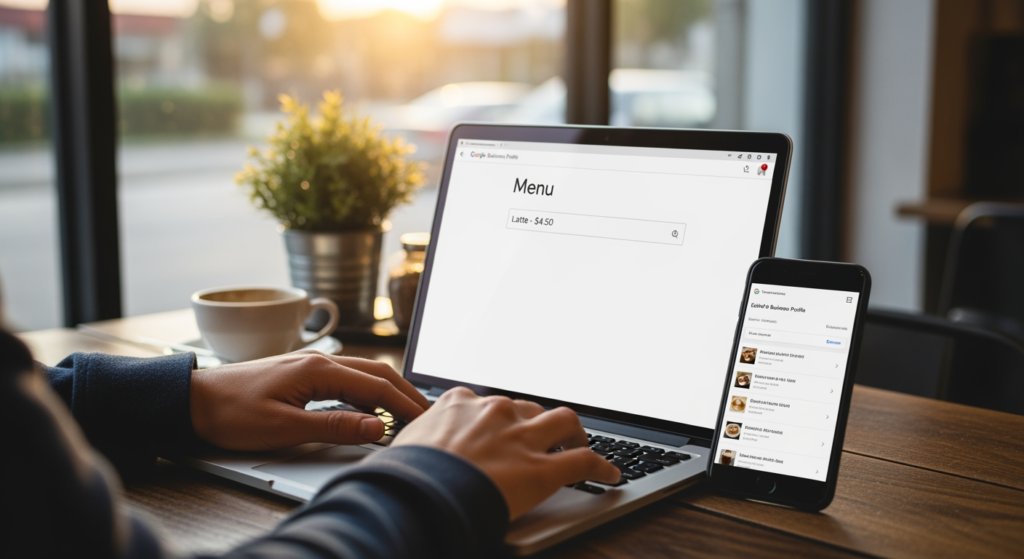
Setting up a Google Business Profile menu sounds simple—until you realize one missing price, one mismatched category, or one “creative” item name can create confusion for customers (and extra work for you). If you run a restaurant, café, bar, salon, spa, or any business that sells bookable or purchasable items, a clean menu inside your profile helps people decide faster—often before they ever reach your website.
This guide is for local business owners and managers who want a practical, step-by-step process to publish a menu that’s easy to scan, accurate, and consistent with the rest of your local presence. If you want the bigger picture on how your profile ties into local visibility, start with Understanding Local SEO for Small Business Growth.
Bottom Line Upfront: Menu Setup Essentials
- Use your real-world menu structure (sections and item names) so customers can find things quickly.
- Keep pricing, descriptions, and availability accurate—outdated info is a trust-killer.
- Match menu items to your primary services/products; don’t add “everything you’ve ever sold.”
- Standardize formatting (capitalization, units, sizes) to look professional and reduce questions.
- Review your menu regularly, especially after seasonal changes or price updates.
How the Google Business Profile Menu Feature Works
Your Business Profile can display a menu (or list of offerings) directly in your business listing. Depending on your business type and what features are available in your account, you may be able to add sections (like “Appetizers” or “Hair Services”) and individual items with names, descriptions, and prices.
Think of it like a “digital billboard 24/7”—it’s not your full website, but it’s often the first place customers look when they’re ready to act. The goal is clarity: customers should understand what you offer, what it costs (when possible), and what to choose next.

The Real-World Impact of an Incomplete or Messy Menu
A menu isn’t just “nice to have.” When it’s missing, inaccurate, or hard to scan, customers often do one of three things: call with basic questions, bounce to a competitor, or show up with the wrong expectations. That can cost you time, create awkward conversations at checkout, and lead to avoidable negative reviews.
On the flip side, a well-organized menu can reduce friction. Customers who know what they want tend to convert faster—whether that means placing an order, booking a service, or visiting your location.
Common Menu Setup Mistakes (Quick Checklist)
- Copying and pasting without cleanup: Formatting glitches and odd spacing make items harder to read.
- Using internal jargon: If only your staff understands the item name, customers will hesitate.
- Leaving out key details: Sizes, included options, or service duration (when relevant) reduce surprises.
- Inconsistent pricing formats: Mixing “$10” with “10.00” looks sloppy and causes confusion.
- Adding too many items: A giant list becomes a scavenger hunt; feature your core offerings first.
- Forgetting to update: Seasonal items, discontinued services, and old prices create trust issues.
Step-by-Step: Google Business Profile Menu Setup Steps
What you’ll achieve: A clean, customer-friendly menu that reflects your current offerings and is easy to maintain.
Prerequisites (Before You Start)
- Access to the Google account that manages your Business Profile
- Your current menu/service list in a clean format (Google Doc, spreadsheet, or PDF)
- Finalized pricing and item names (or a clear plan for “starting at” pricing where appropriate)
- 10–20 minutes of uninterrupted time for the first pass
-
Confirm your menu source of truth
Pick one place where your menu is “official” (often your website or your in-store menu). Your profile menu should match it.
- Tip: If you’re mid-price-change, wait until pricing is finalized—then update everything in one sweep.
-
Organize items into logical sections
Create sections customers expect (e.g., “Starters,” “Entrees,” “Kids,” “Color Services,” “Massages”). Keep the number of sections reasonable.
- Tip: If you offer a lot, put best-sellers or highest-margin items near the top of their sections.
-
Standardize naming and formatting
Make capitalization, sizes, and units consistent across items. Avoid ALL CAPS and overly cute names that hide what the item actually is.
- Tip: Use a simple pattern like: Item Name — short description — price.
-
Write short, helpful descriptions
Descriptions should answer common questions (ingredients, what’s included, service duration, or who it’s for) without turning into a novel.
- Tip: If customers often ask “What is that?”, add a plain-English description.
-
Add accurate pricing (or clear pricing language)
Use exact prices when you can. For services that vary, consider clear phrasing like “Starting at” (where allowed/appropriate) and explain what affects pricing.
- Tip: If you run promos, keep them time-bound and remove them promptly to avoid disputes.
-
Log in and locate the menu editor
Open your Business Profile management view and look for the menu/offerings area available for your business type. Then begin adding sections and items.
- Tip: If you don’t see menu features, double-check that you’re logged into the correct account and that your primary category is accurate.
-
Publish in phases if you have a large menu
If you have dozens of items, publish your core sections first (best sellers + most requested services), then expand.
- Tip: A “complete enough” menu today usually beats a “perfect” menu next month.
-
Quality-check like a customer
Scan for typos, missing prices, duplicate items, and confusing names. Make sure sections appear in a logical order.
- Tip: Have one person who didn’t build the menu do a quick review—fresh eyes catch weird wording fast.
-
Set a maintenance reminder
Add a recurring monthly or quarterly task to review the menu, plus an “immediate update” rule any time pricing or offerings change.
- Tip: Tie menu updates to the same workflow you use for updating your website and in-store signage.

Professional Insight: What Most Businesses Miss
In practice, we often see owners treat the menu as a one-time upload—then forget it exists. The businesses that get the most value usually assign one person as the “menu owner” and connect updates to real operational moments (new seasonal items, vendor cost changes, service package updates).
When to Bring in Local SEO Help
- You can’t find the menu feature: This may be a category, eligibility, or setup issue that needs a structured review.
- Your listing details don’t match across the web: If your name, address, phone, or categories vary, menu work can get messy fast.
- You have multiple locations: Scaling menus across locations requires process and consistency to avoid customer confusion.
- You’re dealing with frequent changes: If pricing or offerings change often, you may need a repeatable workflow (and someone to run it).
- Customers complain about inaccurate info: That’s a sign your local presence needs a broader cleanup beyond the menu.
Frequently Asked Questions
Do I need a website to add items and prices to my profile?
No. Many businesses can add offerings directly within their Business Profile management experience. A website can still help with detail and conversions, but it isn’t always required for basic menu content.
How often should I update my items list?
Update it any time prices, availability, or core offerings change. Otherwise, set a recurring review (monthly or quarterly) so outdated items don’t linger.
Should I include every single item or just best sellers?
Start with your most important categories and top-requested items. If your list is large, adding everything at once can increase errors and make the menu harder to scan.
What if my pricing varies by customer or project?
Use clear, customer-friendly pricing language where appropriate, and explain what drives the range (size, complexity, add-ons). The goal is to set expectations without overpromising.
Can a menu help reduce low-quality leads?
It can. When customers can see what you offer and typical price points, you often spend less time answering basic questions and more time with people who are a better fit.
Taking Action
A well-maintained menu inside your Business Profile helps customers make faster decisions and reduces confusion before they call, book, or visit. Keep your structure simple, your naming clear, and your prices accurate. If you treat updates as part of your regular operations—not a one-off task—you’ll get a cleaner customer experience and fewer “wait, how much is it?” conversations.
Book Your Consultation
Schedule a free consultation with our experts.
